“My handpans”: a single door to your instruments
Declare your pan, set a second one beside it, find your setup again on the iPad: there used to be five different paths, now there's only one. Here's which one, and what has changed.
This article is as much a repair as it is a new feature. For months, setting a second handpan beside the first could be done five different ways in the app — and two of those five behaved badly. One served the general catalogue while claiming to show “your” instruments. The other forgot: you removed a pan, reloaded the page, and it was back.
This screen is the same on both sides: whether your handpans are acoustic or electronic, it’s the same cards and the same gestures. Only a few settings change depending on the instrument, and that’s spelled out where it happens.
Today, only one door remains. If you’ve read instructions here that mention drop-down lists, a banner to bring up, boxes to tick or a “FOR” bar, they’re out of date: this is the right version, the October 2026 one.
A concrete case
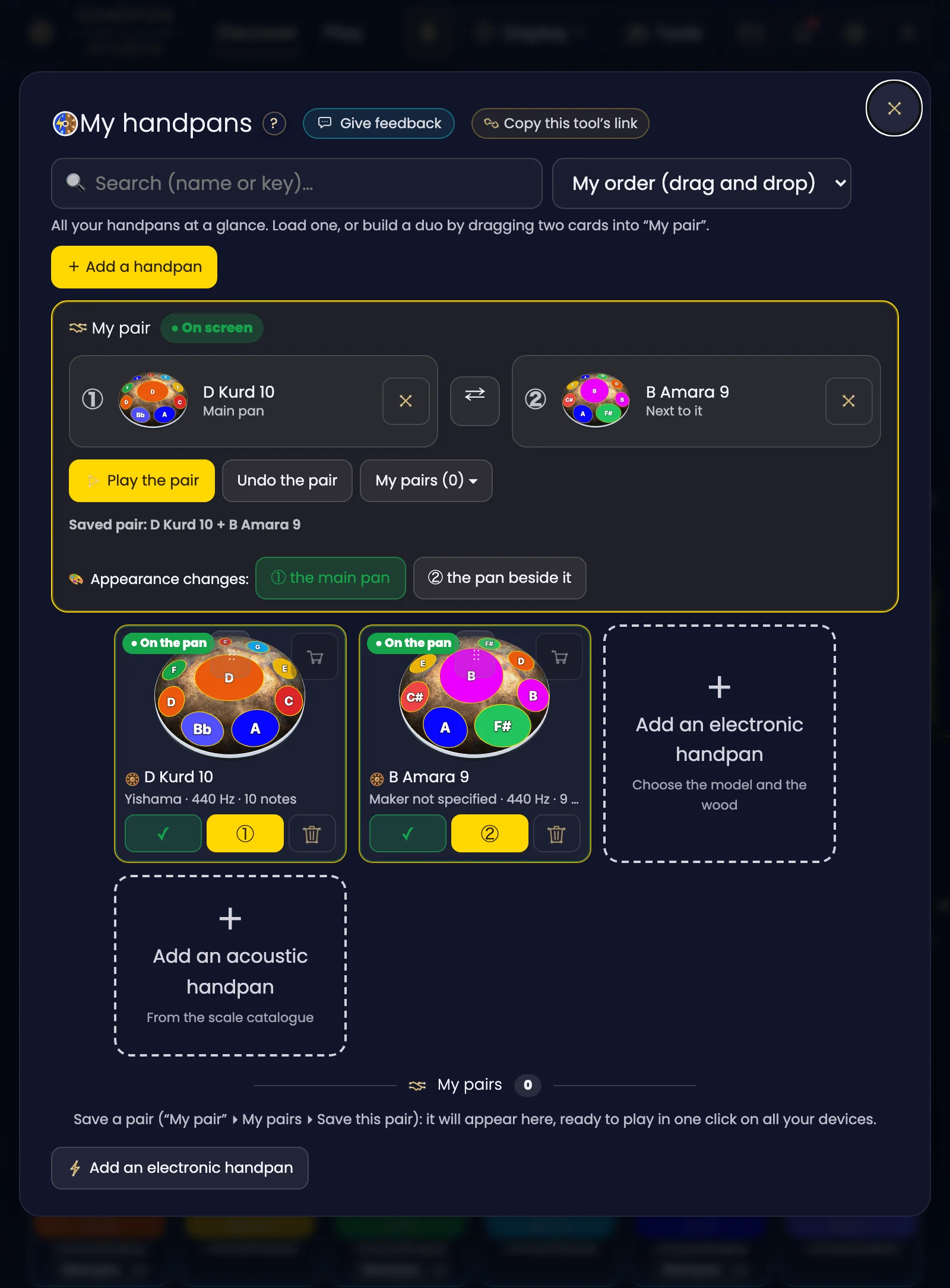
You play a D Kurd 10. Someone lends you a second pan for the weekend — say a B Amara 9 — and you want to know what the two sound like together, which chords become possible, which hand goes where.
Before, you had to guess. Now you just set the two of them in My pair.
My handpans, at a glance
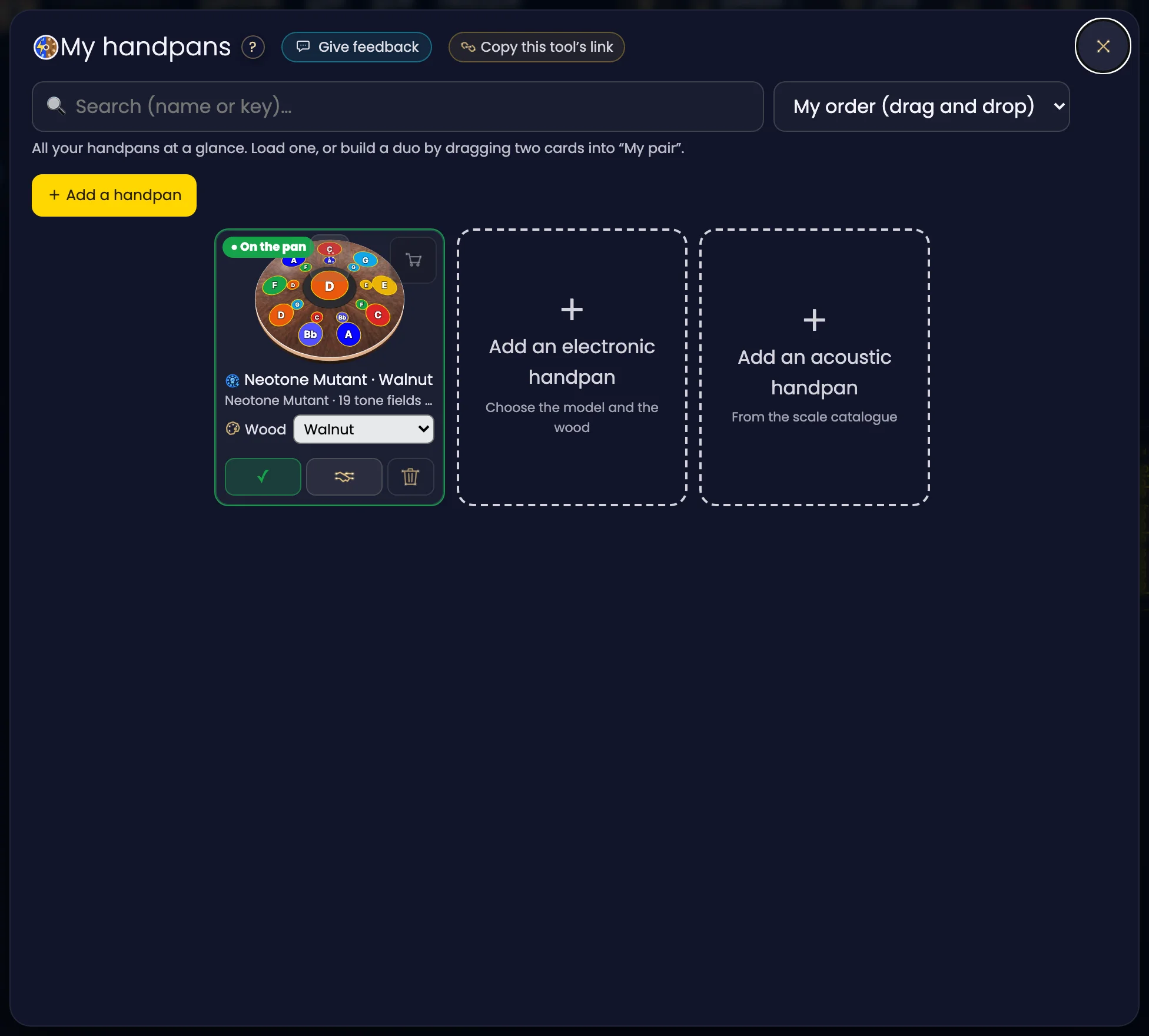
My handpans opens wide and shows your instruments, not the world’s catalogue. That’s a deliberate reversal: acoustic is a finite, personal world — we start from what you have. To add one, two dashed cards are waiting: Add an acoustic handpan, from the scale catalogue, and Add an electronic handpan, where you choose the model and the wood.
Each instrument has its own card, with:
- its real drawing, coloured notes included;
- its name, and below it the maker, the tuning reference and the number of notes;
- the green “On the pan” badge when it’s on screen;
- three buttons at the foot: ✓, its place in the pair (① or ②) and the bin.
At the top, a search by name or key, and a “My order (drag and drop)” sort: you arrange your cards however you like.
Click the image to open it, then click it again for full size.
Click the image to open it, then click it again for full size.
My pair: two places, and that’s all
This is the gesture to remember. The app says so itself at the top of the screen: load one, or build a duo by dragging two cards into “My pair”.
My pair has two places. Place ① takes the main pan, place ② the one that sits next to it. Each place has its ✕ to take the instrument out, and the place also shows on the card, in yellow.
The order matters, because it decides which pan is on the left and which is on the right when the two are shown side by side. Got it the wrong way round? The ⇄ button, between the two places, swaps them (except in a Hybrid duo: the button is greyed out there, because the acoustic stays in ①, see below).
Under the two places: Play the pair, Undo the pair, and My pairs. The pair you set is saved (“Saved pair: D Kurd 10 + B Amara 9”): it survives a page reload, which was one of the two real flaws of the old system. And the line “Appearance changes: ① the main pan / ② the pan beside it” lets you choose which pan the appearance settings apply to.
Finally, right at the bottom, My pairs keeps the pairs you’ve saved (“My pair” › My pairs › Save this pair), ready to play in one click on all your devices.
If the two instruments aren’t from the same family
Two acoustics side by side make an Acoustic duo; an acoustic beside a Neotone makes a Hybrid duo: your two handpans don’t come from the same world, and the pairing follows rules of its own — that’s the subject of this other article.
But it doesn’t refuse them either, the way it used to: put an acoustic and an electronic in My pair and you get a Hybrid duo; the acoustic always takes slot ①, the main pan, and the electronic slot ②. If you set them the other way round, the app puts them back in order and tells you so (“Acoustic + electronic: the acoustic becomes the main pan, the electronic goes next to it.”). It’s a door, not a wall.
The Neotone gets the same cards
A small catch-up from the end of August: in electronic mode, the right-hand panel had no identity block at all. You were playing an instrument the panel didn’t even name.
Now “My handpans” shows up in both worlds — same cards, same gestures. A Neotone’s card also carries its Wood menu, and the Add an electronic handpan card lets you choose the model and the wood, and therefore the Mutant / Neotone¹ choice, which until now was invisible on phone.
Your setup follows you from one device to another
This is the new feature from 31 August, and it’s the one that was missed most if you use the app on two screens.
You’d spend ten minutes at the computer moving the bottom notes of your handpan to where they actually are on your instrument. Then you’d open the iPad: it knew nothing about it. The same went for your duo, your scale drafts and your progress — all of it lived on the machine, not on your account.
What follows you now:
- the placement of the bottom notes — the real geometry of your instrument, not a preference;
- the vertical alignment of the handpan on screen;
- the pairing of your duo;
- your octave choices;
- your scale drafts from the Lab and your progress.
Nothing is ever erased: when two devices disagree, the more recent one wins and the other version is archived.
⚠️ One gesture to know, and only once. The very first time your devices reconcile, open last the one whose placement you want to keep. After that, you never think about it again.
Renaming, crediting
Three details that count for more than they look.
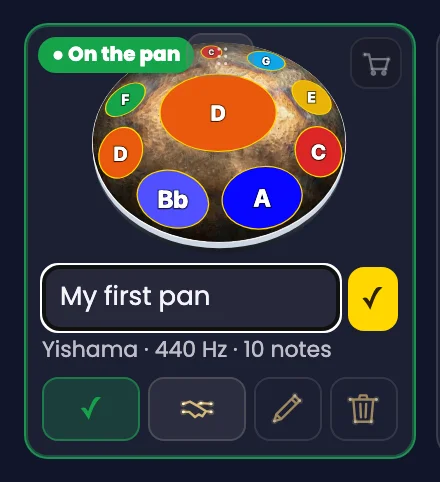
✎ Rename an instrument. Every card in 🪘 My handpans has its ✎ pencil: type the name you want, then ✓ or Enter. Escape cancels, and emptying the field gives the instrument back its original name. That name follows it everywhere: on the instrument button above the pan, in the pair banner and when you resume a session. It is saved to your account, like the rest of your handpans.
Click the image to open it.
✎ Name a pair. When you save a pair (“My pair” › My pairs › Save this pair), you can give it a name — “Stage”, “Meditation” — and change it later with the ✎ pencil on its line in My pairs.
The maker’s credit is attached to the instrument it describes, no longer to the screen in general. “Made by Yishama Pantam — Yhonatan Ale-Yahav” follows the scale all the way onto printed scores. A handpan has a maker; the least we can do is keep it written on it.
What’s free, what isn’t
Everything this article describes — declaring your instruments, setting a pair, swapping it, naming it, seeing what the two allow — belongs to acoustic mode, which is free.
And everything is saved to your account, even on the free tier: your handpans and your duos find you again on another device, as the previous section describes.
What isn’t here yet
The old “merged” entries are still lying around. The old ”💾 Save my 2 handpans” button created a third, phantom entry in your library, on top of the two real instruments. The button is gone — the pair remembers itself — but entries already created still load. If you have any, you can remove them without losing anything.
Acoustic fingering is still generated. When the duo draws a chord across both shells, the play order and the hand assignments come from an engine that knows the real position of every note — it’s serious work, it was deeply corrected at the end of August, but it hasn’t been reviewed chord by chord under my own hands the way the electronic Logic Mode has. Take it as a solid proposal.
What just arrived
Scale recognition by microphone has arrived, and it is still young. If you don’t know your scale, the microphone scale-recognition tool in 🧰 Tools guides you step by step: you play your notes, the app names them, and the drawing of your handpan fills in with each note it recognises. The Sound Atlas is still there to recognise it by ear.
The summary, if you remember only one thing
My handpans → your instruments as cards; 🤝 My pair and its two places to play two together; 🤝 My pairs to find the ones you saved.
One door for your instruments. That was the point.
And once your two pans are set, the next question is: what does that unlock, exactly? It has its answer in “Reveal”, and in the “Complete your scale” screen.
Open Handpan Constellation Studio. And if something stays unclear, the 💬 Give my feedback button is there for that: it’s what produced this clean-up.
Ready to make your colours sing?
Try the app for free, or discover the electronic Neotone handpan.